Workflow steps: settings for every step
This guide explains every step you can use in a workflow: what it does, what you set and what to watch out for. Click a step on the canvas to open its settings on the right.
Trigger
The trigger decides when the workflow runs. Every workflow has exactly one.
Time schedule
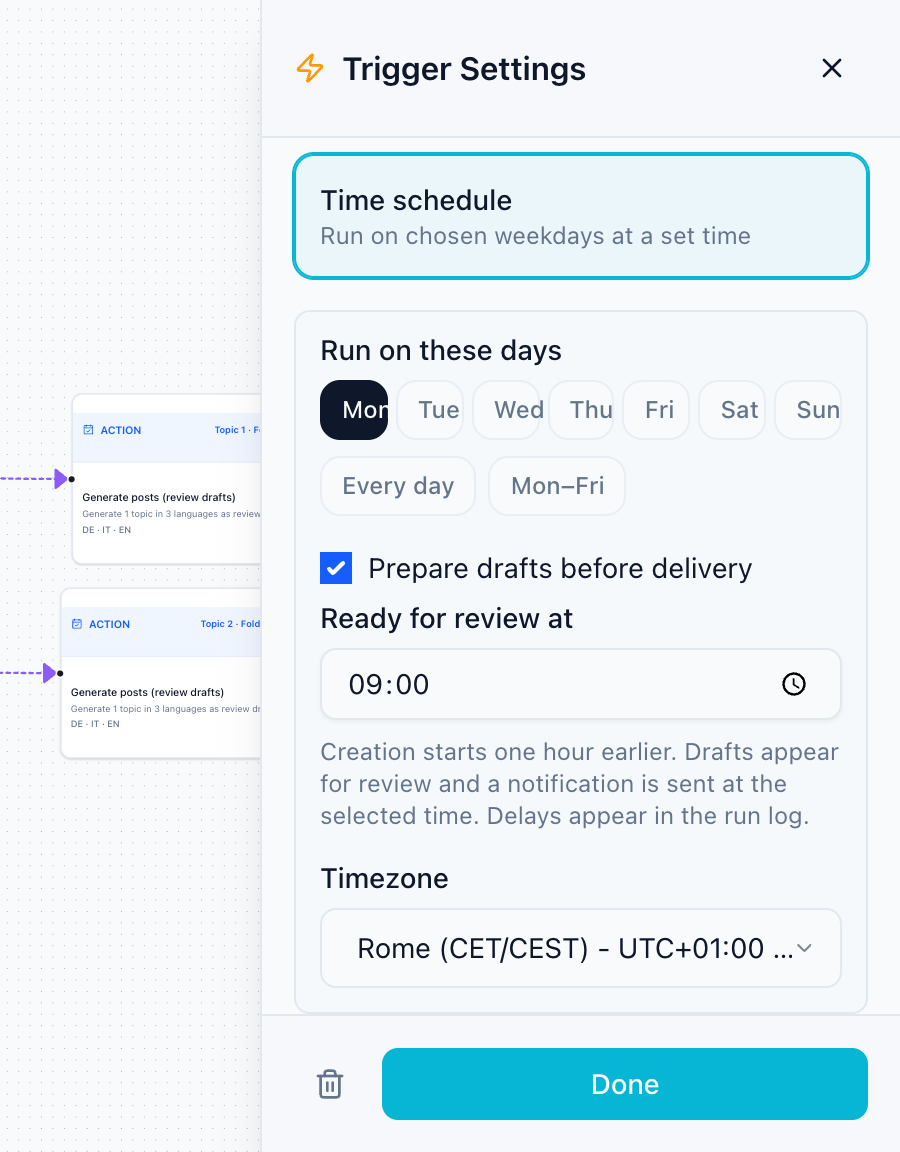
- Run on these days: pick single weekdays, Every day or Mon–Fri.
- Time and timezone: the workflow runs at this local time. Daylight saving time is handled for you.
- In workflows that create posts with AI, tick Prepare drafts before delivery and set Ready for review at. Creation starts one hour earlier, the drafts and a notification arrive at the chosen time, and any delays show up in the run log. This is not the publish time; that is set in the publish schedule.
New post, tracked post metric, evergreen, manual
- New post: choose the platform, format and account to watch. Each new post starts one run and is itself the material.
- Tracked post metric: choose the metric (likes, comments, shares, views, engagement), the comparison and the threshold.
- Evergreen reposting: choose where existing content comes from and in which order it rotates.
- Manual: runs only when you click Run now.
The trigger has no source fields. What gets posted is set in the Content step; the trigger shows Add content step when it is missing.
Content
The content step decides where the material comes from.
| Source | What a run takes | Good for |
|---|---|---|
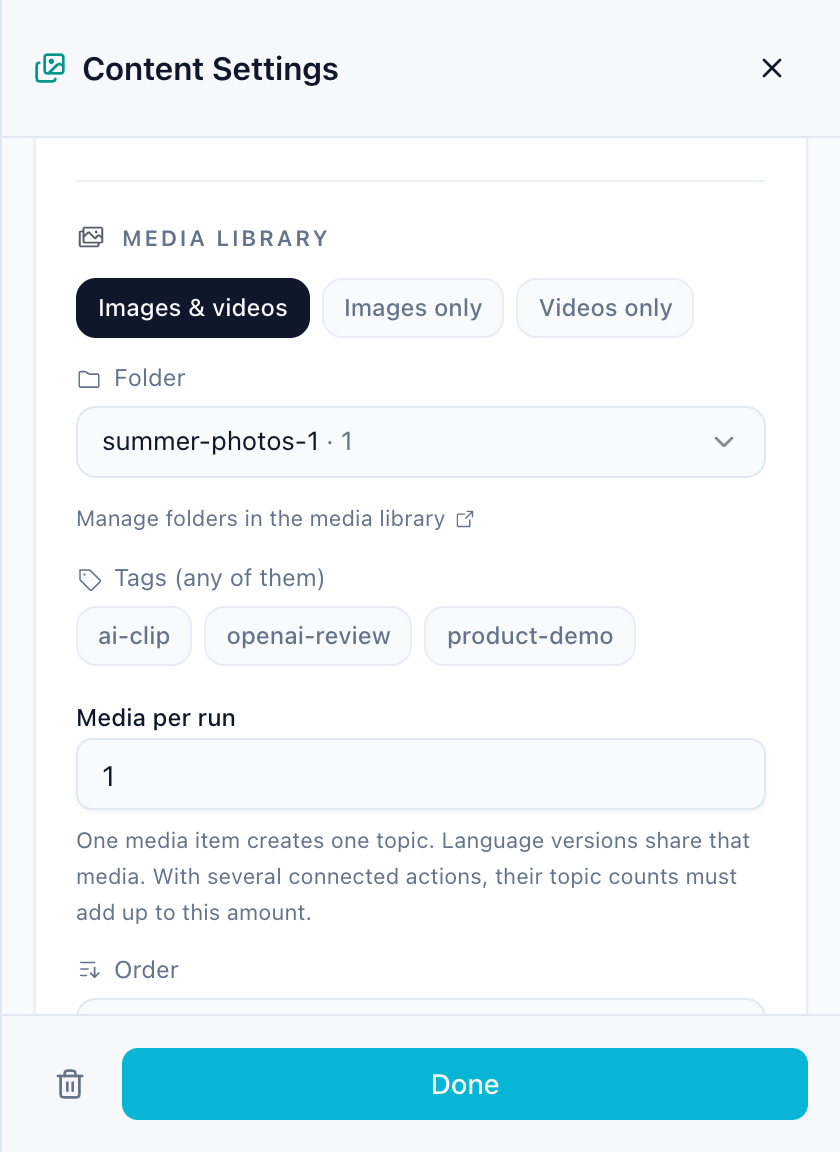
| Media library | The next image or video from a folder that this workflow has not used yet | Your own photos and videos, posted one by one |
| Repost queue | The next post in your repost queue | Reposting proven content |
| A specific published post | The same post every time | One-off reposts; on a repeating schedule platforms may reject identical posts |
For the media library you choose the media type, folder, tags, the order and what happens when every media item has been used. Publishing workflows also get a Post text that is used as the caption. In workflows that create posts with AI, the content step also holds the Briefing (what the posts should be about and how they should sound), optional Topic ideas and Media per run.
Details: Content step and media folders.
Action
The action decides what happens. First choose what should happen, then the details:
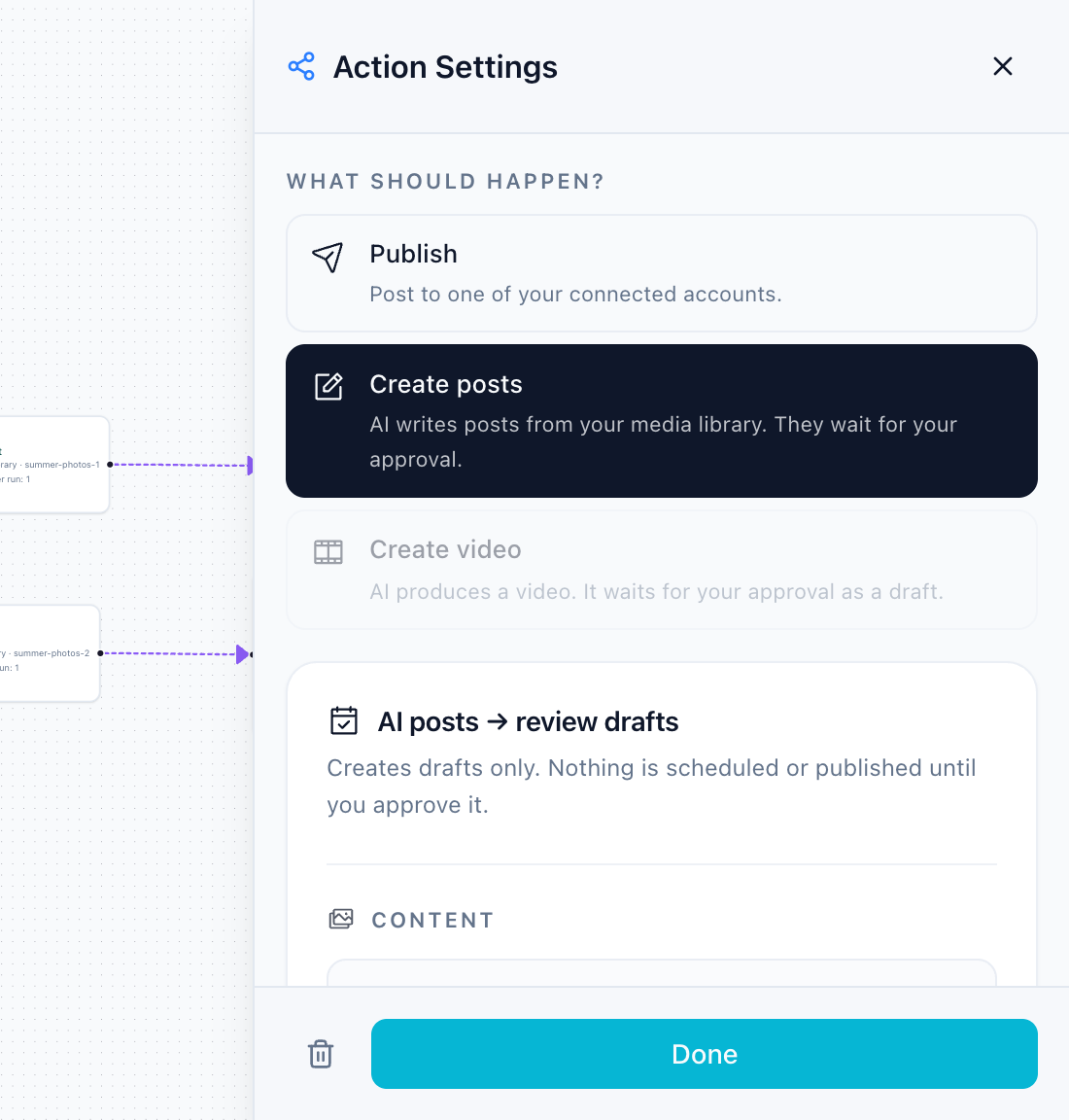
- Publish: choose the platform, then the format, for example Instagram · Feed post or Instagram · Reel, and the target account. Caption handling: keep the text, add a prefix or suffix, let AI rewrite it, or use a fixed custom caption. Some platforms need extra settings, such as TikTok privacy or a Pinterest board.
- Create posts: AI writes posts from your media folder, with topics per run, languages and accounts. They always wait for your approval. See Weekly content plan with AI review drafts.
- Create video: renders a video from a Get Viral script with your own video provider. Choose the provider, style, destination, a maximum cost per run and confirm the cost approval. Without a connected provider the step shows a warning and the workflow cannot be activated.
Create posts and Create video each need a workflow of their own and cannot be combined with publishing actions.
Delay
The delay waits a fixed time before the next step: minutes, hours or days. Use it to stagger posts, for example TikTok → wait 30 minutes → YouTube Shorts.
Publish schedule
The publish schedule decides when posts go live, independent of when the workflow runs.
- Publish days and one or more times per day.
- The timezone comes from a time-schedule trigger.
- Each run takes the next free slot; slots an earlier run filled are skipped. All accounts of one run post at the same time.
- If the trigger creates more posts per week than the schedule has slots, the step warns you: posts would pile up and move further and further out.
- For AI posts in several languages, each topic gets one slot and the language versions follow two hours apart. Every date can still be changed during review.
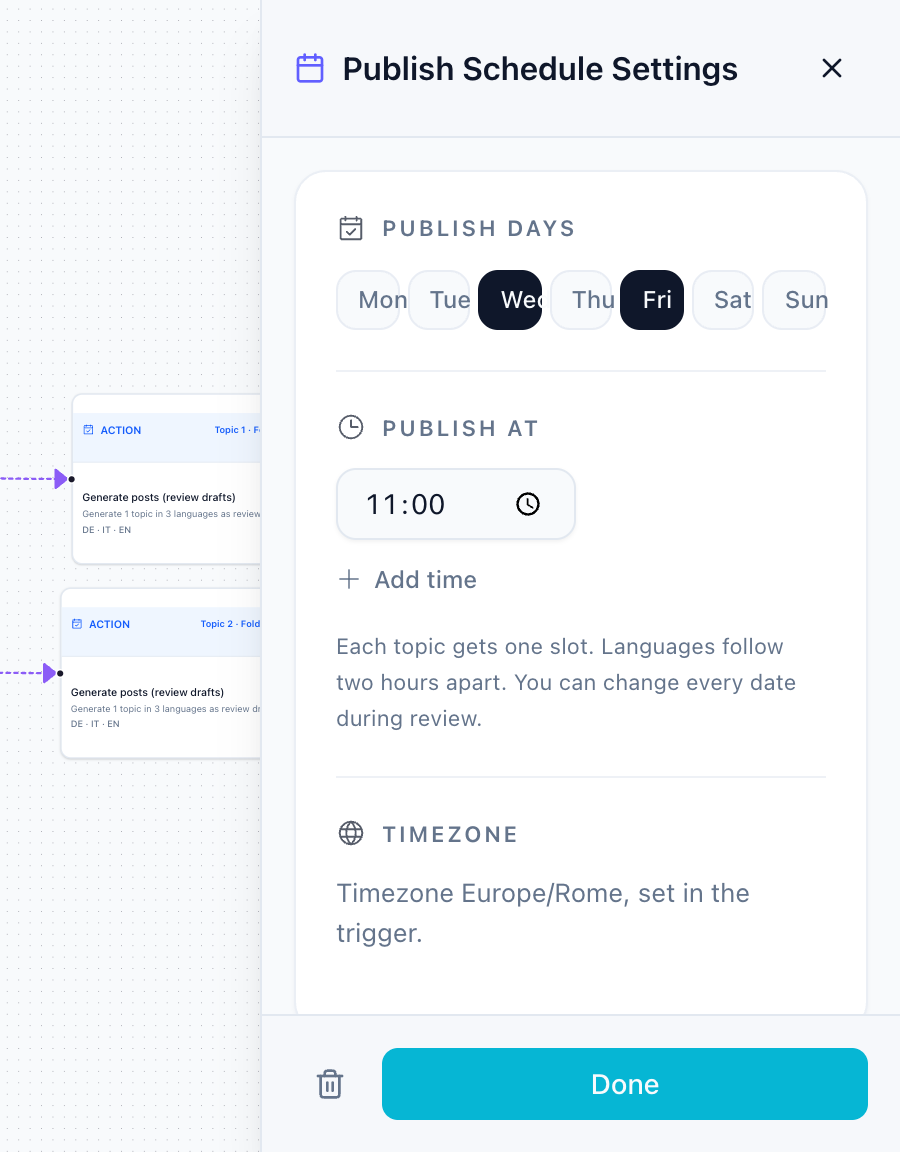
Example: the workflow runs on Monday at 09:00 and the schedule says Tuesday 11:00. On Monday the post is created and scheduled; on Tuesday at 11:00 it goes live.
Without a publish schedule, posts go out right after the run (plus any delay). Evergreen workflows keep their own posting settings in this step.
Approval
With an approval step, posts are created as drafts and wait on the workflow's review page. Nothing is published until you approve it. Drafts get at least a day before their proposed time so there is room to review. Posts created with AI always wait for approval, with or without this step.
Details: Approval and the review page.
If condition
The if condition continues only when a metric of the post meets your rule, for example likes greater than 100, and can lead to a different branch otherwise. Media from the library has no metrics yet, so the condition is not met for it.
Rules the editor enforces
- One trigger, one content step, one publish schedule and one approval step per workflow. Dragging in a second one selects the existing step instead.
- No loops: a connection that would lead back to an earlier step is refused.
- Run now and Run once ask before they run, because they create real posts or drafts.
Related guides
- Workflow Builder
- Content step and media folders
- Approval and the review page
- Planning, preview and monitoring
Was this article helpful?
Your feedback helps us improve our documentation.
Last Updated