Planning, preview and monitoring
Before a workflow goes live, and while it runs, Tareno shows you what it will do: when it runs, what it uses and when the posts go out.
Three views on the overview
Open Dashboard → Workflows and switch the view in the top right. Tareno remembers your choice.
- Cards: every workflow as a card with its steps, status and the next runs.
- List: one compact row per workflow. Good when you have many workflows.
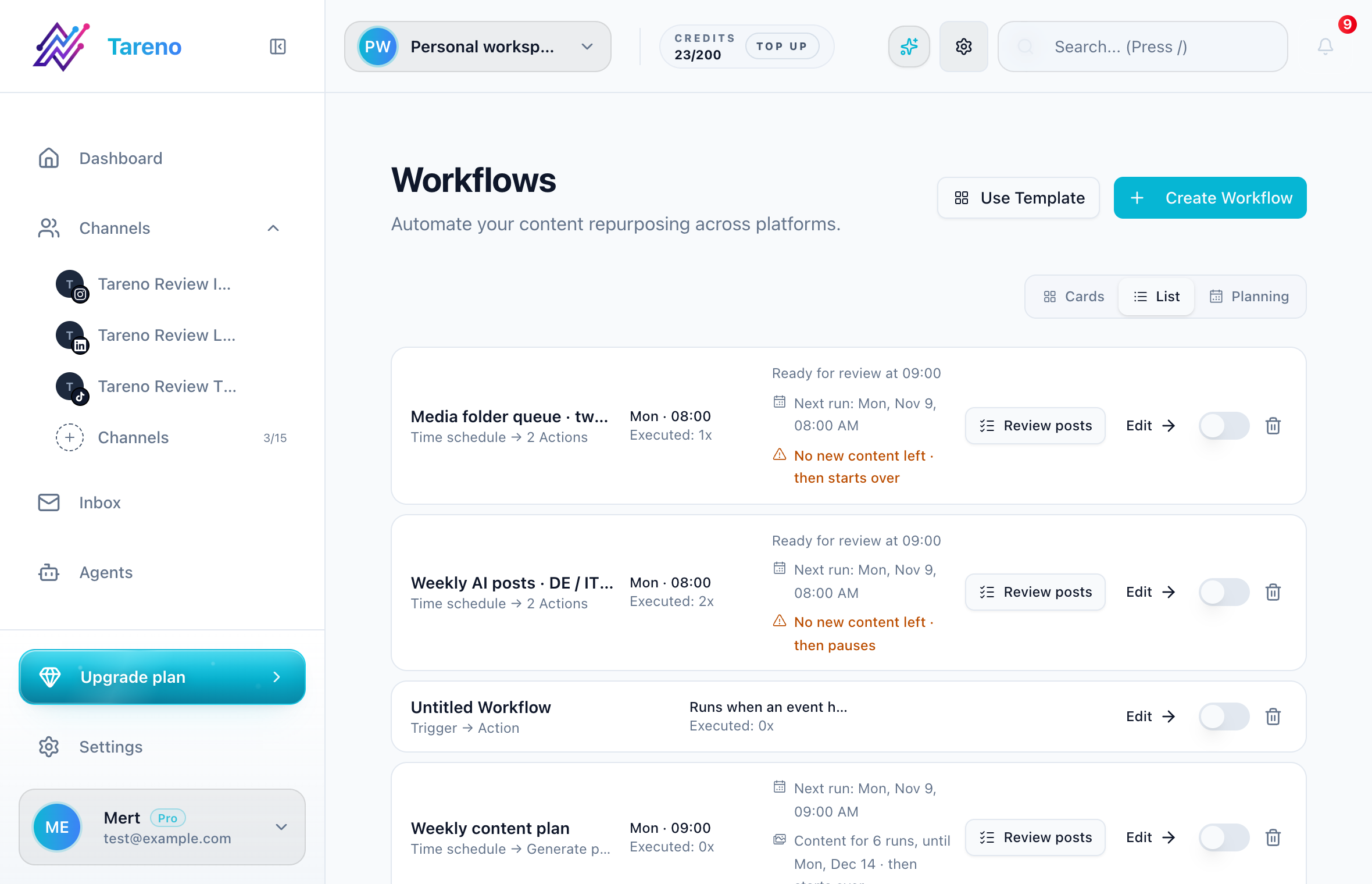
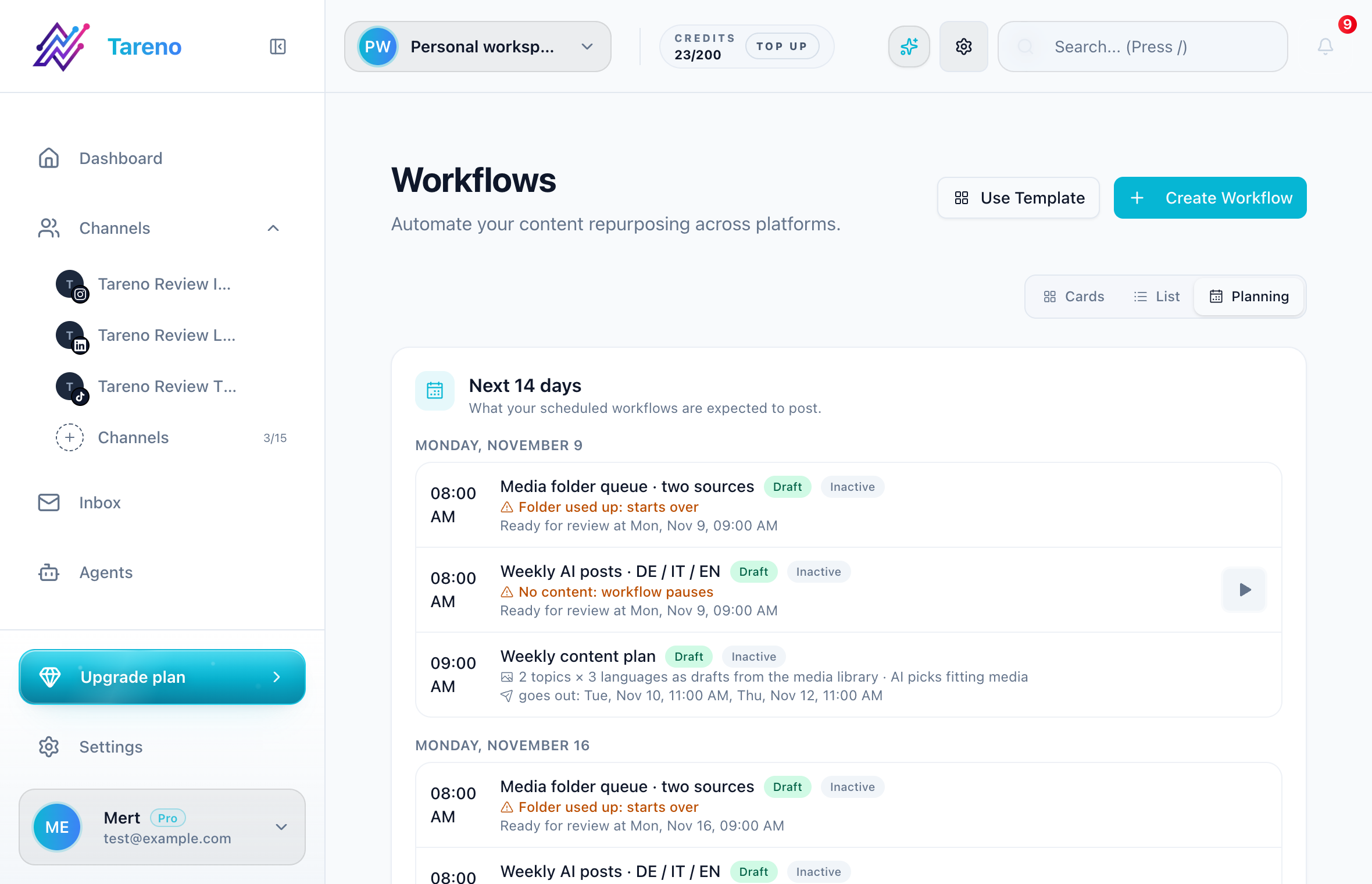
- Planning: the next 14 days for all scheduled workflows, day by day. Each run shows the workflow, the time, the media it will use, whether the posts land as Draft or go out Direct, and when they go live. Warnings such as Folder used up appear right on the run.
Content reach
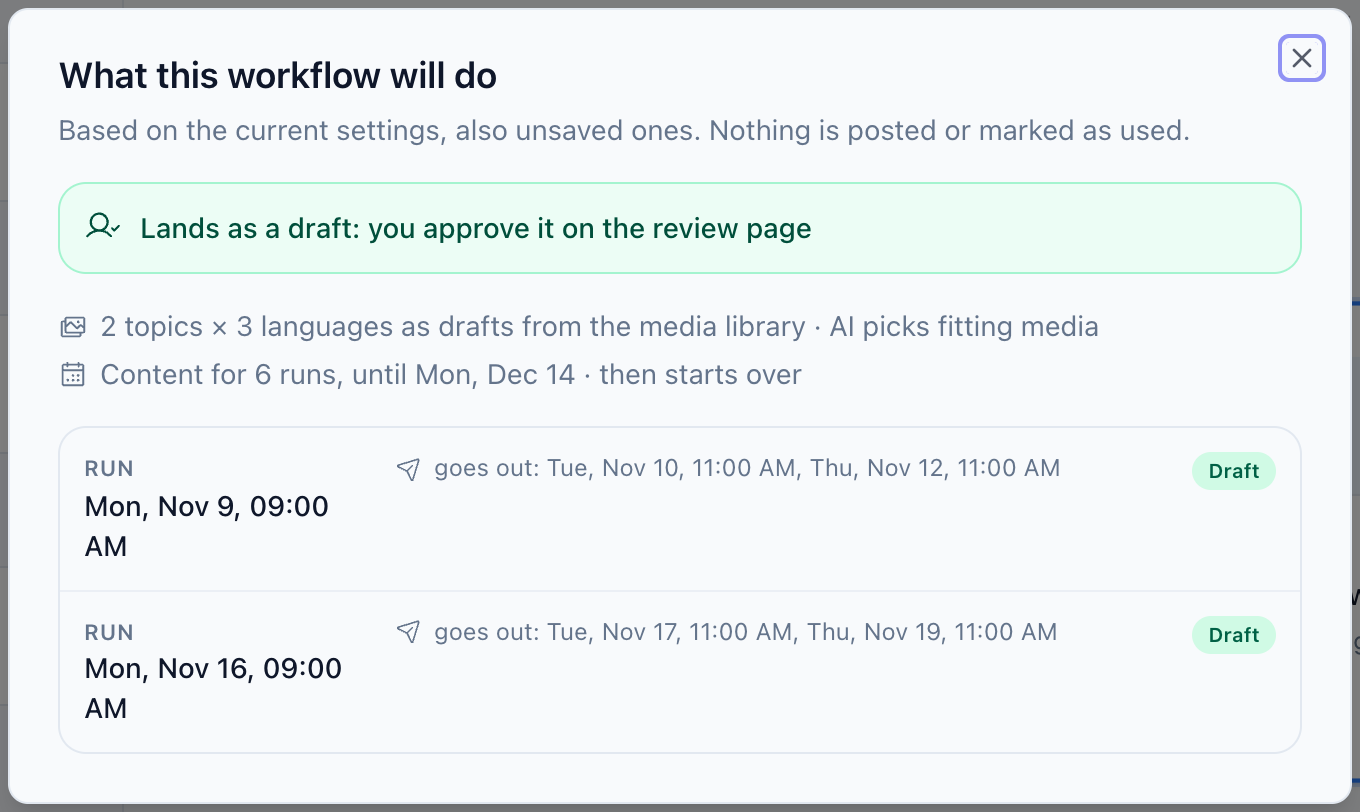
Workflows that take media from a folder show how long the folder lasts, for example Content for 6 runs, until Mon, Dec 14 · then starts over. When the folder is nearly empty, upload new files or move more files into it. What happens at the end depends on the When every media item has been used setting in the content step.
Preview in the editor
Click Preview at the top of the editor to check your current, even unsaved, settings. The preview lists the next runs with:
- the date and time of the run,
- the media file each run would use,
- Draft or Direct,
- the time the posts would go live.
Nothing is created or saved by the preview.
Run once to test
Run once on the overview, or Run now in the editor, starts a workflow a single time, even when it is inactive. Tareno asks first because the run is real: it creates posts or drafts, uses media from the folder and may use AI credits. For a safe test, add an Approval step so the result lands as drafts.
Execution history
Each workflow keeps a history of its runs with status, time and the posts created. Failed runs show the reason, for example a disconnected account, an empty folder or a format that does not fit the media.
Related guides
Was this article helpful?
Your feedback helps us improve our documentation.
Last Updated