Content step and media folders
A folder in your media library can work like a queue: every run of a workflow takes the next image or video from it that the workflow has not used yet. This guide shows how to set up the folder and the Content step.
1. Prepare a folder in the media library
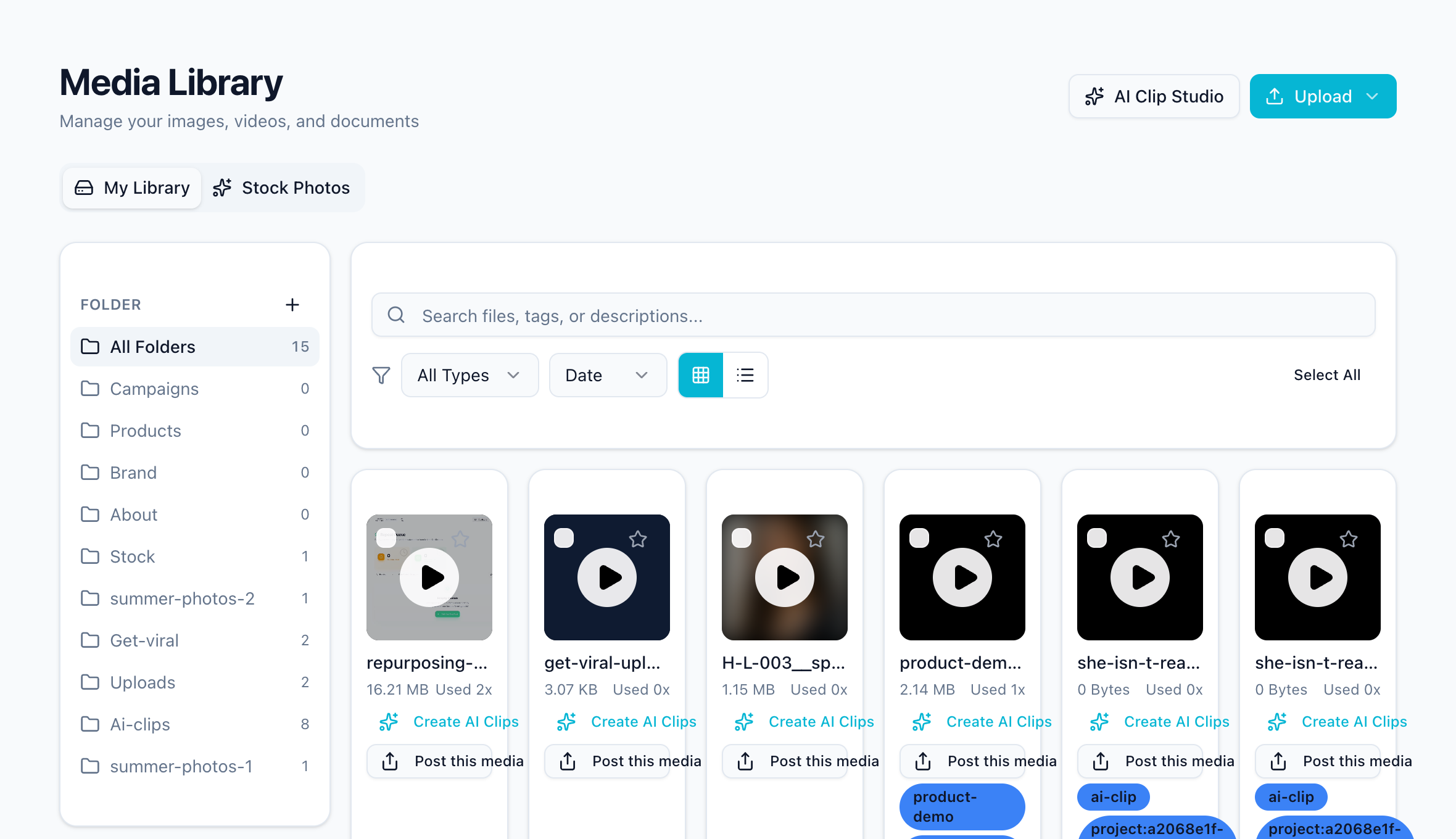
- Open Dashboard → Media library.
- On the left you see all folders with the number of files in each. Click + to create a new folder, for example own-media or summer-2027. The new folder opens right away.
- Upload your photos and videos with Upload → Upload files or by dragging them onto the page. They land in the folder that is open.
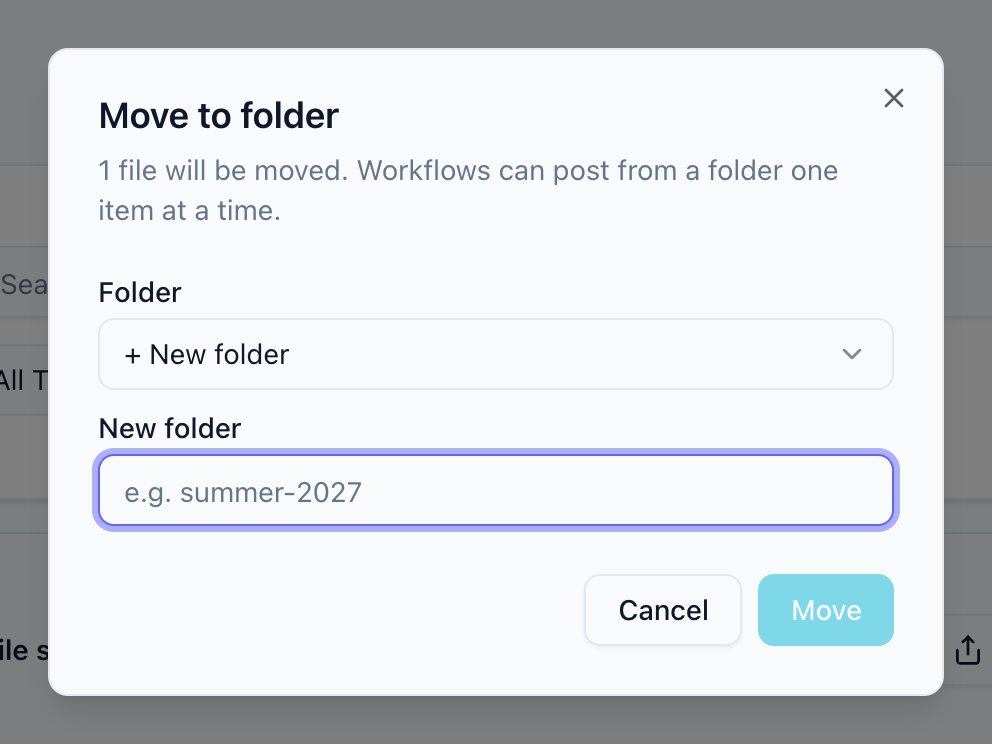
- To sort existing files, select them and choose Move to folder. Pick an existing folder or + New folder.
On a phone the folder list becomes a dropdown above the files.
2. Choose the folder in the Content step
Open the workflow, select the Content step and choose Media library as the source. Then set:
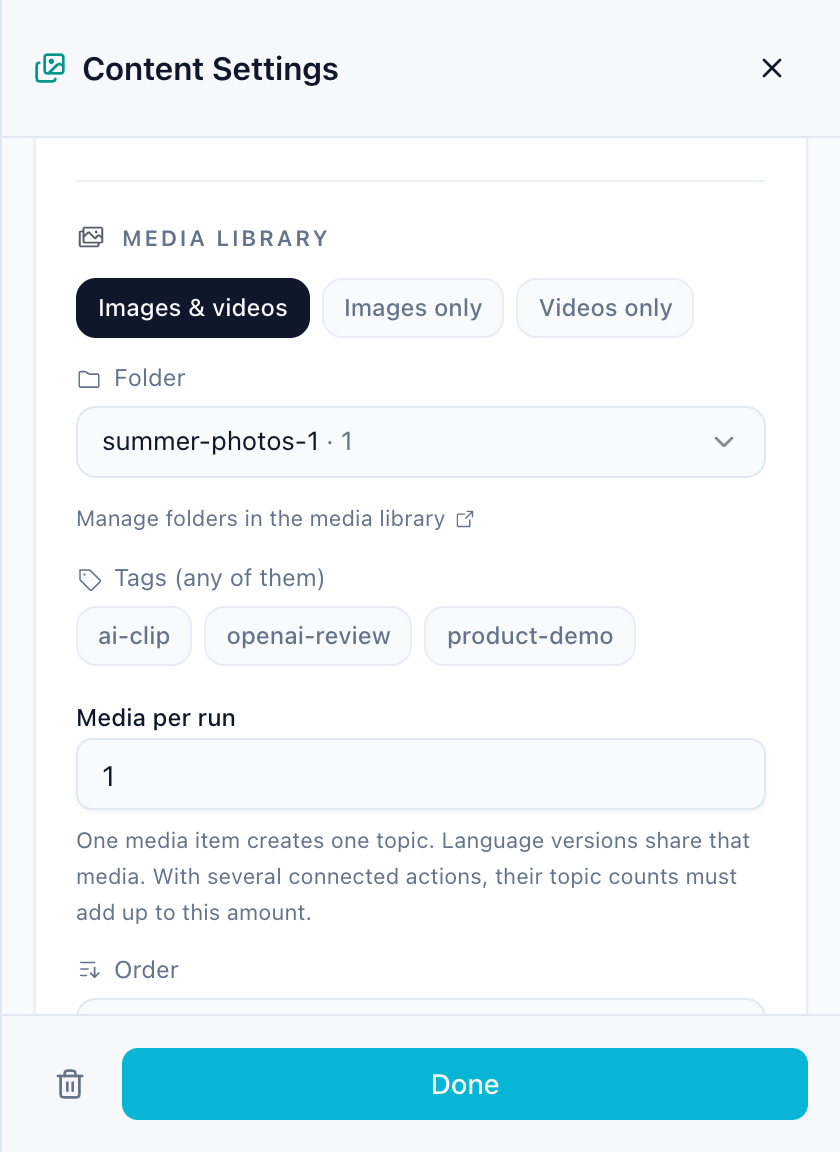
- Media type: images and videos, images only or videos only.
- Folder and optionally Tags (any of them is enough).
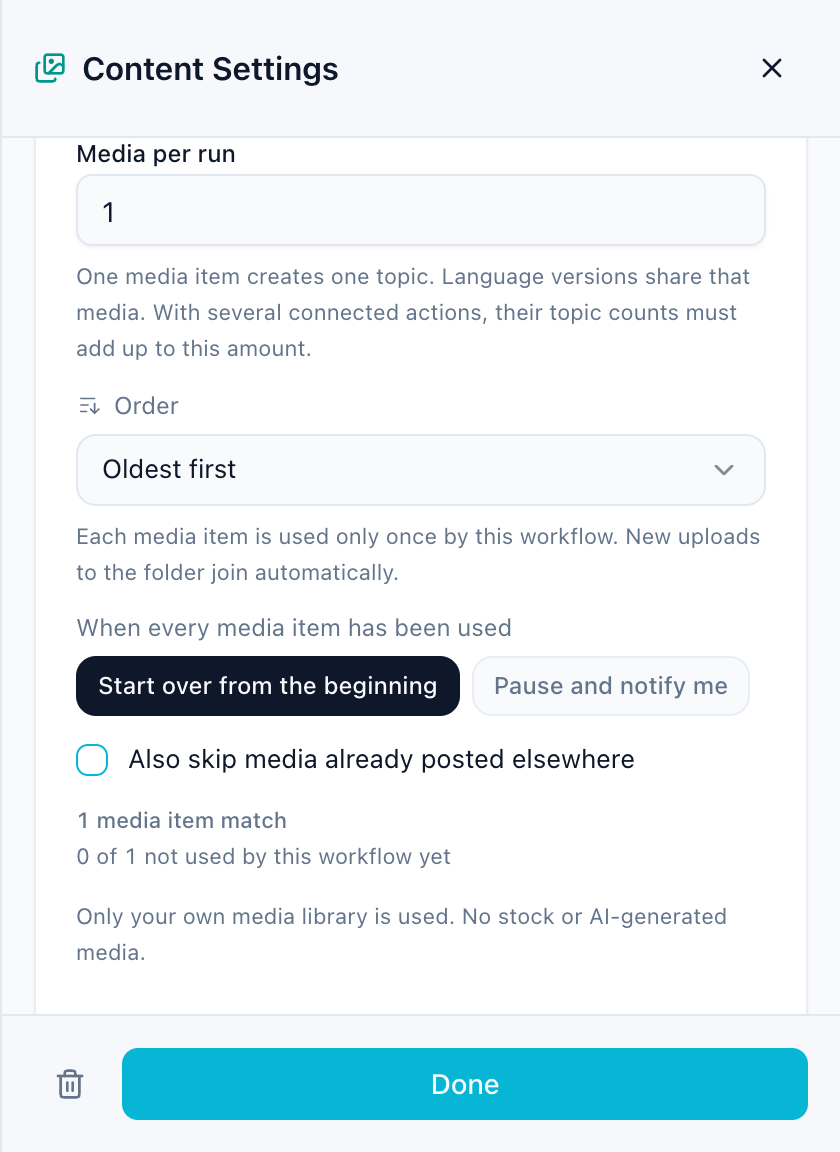
- Order:
- Best fit for the topic (AI picks), only in workflows that create posts with AI
- Newest first or Oldest first
- Alphabetical (file name)
- Random
- When every media item has been used: Start over from the beginning or Pause and notify me.
- Also skip media already posted elsewhere if a file must never appear twice on your channels.
Below the settings the step shows how many files match and how many this workflow has not used yet.
In workflows that create posts with AI, the same step also holds the Briefing and optional Topic ideas, and Media per run sets how many files, and therefore topics, one run uses.
In publishing workflows you also write a Post text. It is the caption for every file; in the action you can keep it, add to it or let AI rewrite it for each post.
How the queue works
- A file counts as used once it is in a draft or post of this workflow. Every workflow keeps its own count, so two workflows can share a folder.
- If you discard a draft, its file goes back into the queue.
- New uploads to the folder join the queue automatically.
- When the folder runs out, the workflow starts over or pauses and notifies you, depending on your setting.
- If every action needs a video (for example Reels or YouTube Shorts), only videos are taken from the folder.
AI looks at your images and videos
When AI writes posts, it first looks at each new image and the first seconds of each new video and notes what is visible. Topics and captions are then written to match the content, even for files named like IMG_3092.jpg. Each file is analysed once; the description is stored with the file.
Keep only real content in a posting folder. Screenshots, documents or app screens are described as what they are, and a post about them is rarely what you want.
Tips
- One folder per theme or campaign keeps the queue predictable.
- Descriptive file names and tags still help when choosing between similar images.
- Check Planning on the workflow overview to see which files the next runs will use and how long the folder lasts.
Related guides
Was this article helpful?
Your feedback helps us improve our documentation.
Last Updated